 Nederlands
 English
 Great Britain
 Deutsch
 Français
 Svenska
- Home
- Let's get SMART!
Let's get SMART!

Pairing Smart products

Need help connecting the Smart products? Our videos offer step-by-step instructions on how to pair your products via the Lightpro app and how to program settings with the Motion Sensor and Camera Smart! Please note that your Wi-Fi network must operate at 2.4 GHz to correctly pair the Smart products. Do you prefer a manual over a video? Then scroll down a bit for our Lightpro SMART manual!
Don't have the Lightpro app on your phone yet? Scan the QR code with your mobile phone to download the app or click on the button.
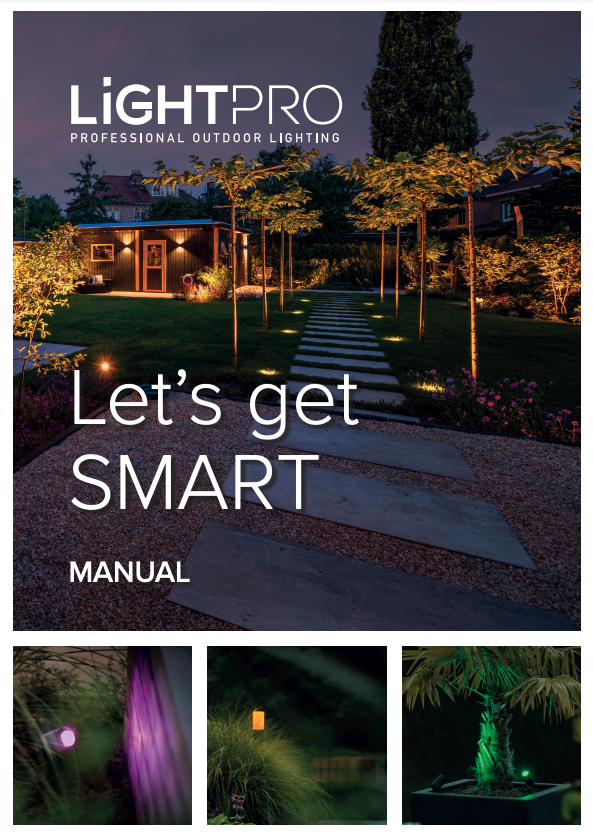
In the SMART manual, you will find information about:
- Installing the Lightpro app: How to download and install the app on your smartphone or tablet.
- Pairing Smart products: Step-by-step instructions on how to connect your Smart lights and accessories.
- Automatic timers: How to set automatic timers on astronomical clock or a schedule.
With our 12V SMART system (Zigbee & Wi-Fi), you can make your garden SMART in no time! Let your lights dim, dance, get brighter and change colour based on your screen or sound.
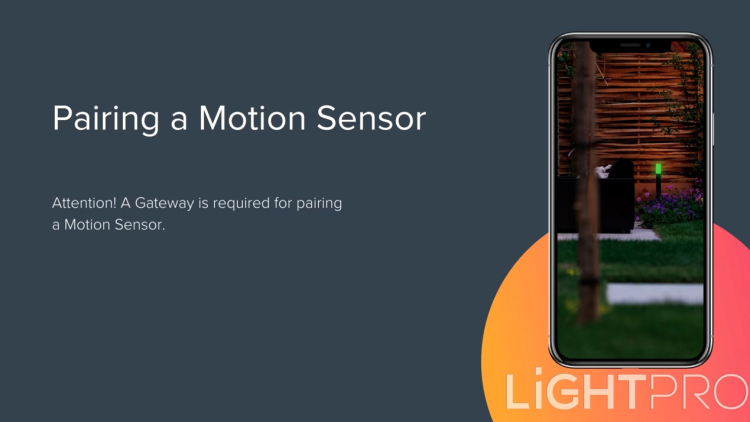
These videos will show you, among other things, how to:
- Pair Smart products: Follow the steps in the Lightpro app to connect and pair your Smart lights, sensors or other devices.
- Set up programming: Learn how to easily set up schedules and automations so that your Smart products automatically switch on or off at specific times or on motion.
Range and Connectivity
Smart outdoor lighting works best when all components communicate effectively. That’s why it’s important to consider the range of the different parts of your system:
The gateway is the heart of your smart lighting system.
- Distance to router: max. 16 meters
- Range to Zigbee products: 20 meters (in open space)
Tip: Place the gateway centrally and avoid obstacles like thick walls or metal objects.
Zigbee products form a mesh network together.
- Range between Zigbee products: up to 20 meters (in open space, without obstacles)
Advantage: A Zigbee light source relays the Zigbee signal, creating a stable and self-healing network.
Note: The motion sensor is part of the mesh network but does not relay the Zigbee signal to another Zigbee product.
The smart camera operates via WiFi. You can also control non-smart lighting via the Lightpro Switch WiFi.
- Range: up to 40 meters (in open space, without obstacles, depending on your router)
Recommendation: Use a WiFi extender for longer distances to ensure a stable connection.
Frequently asked questions
All permanently powered Zigbee devices (such as smart plugs, lamps and some switches) act as repeaters. Battery-powered devices (such as sensors and remote controls) do not amplify the signal. Our Motion Sensor is battery-powered, this means the Zigbee signal is not transmitted.
The AP mode (Access Point mode) on the Zigbee Tuya Gateway allows you to connect directly to the gateway with your smartphone without requiring an active Wi-Fi network. This is useful during setup or when experiencing connection issues.
Steps to use AP mode:
- Reset the gateway: Press and hold the reset button until the LED indicator starts flashing quickly.
- Switch to AP mode: When the LED indicator flashes slowly, the gateway is in AP mode.
- Open the Tuya Smart or Smart Life app and add a new device.
- Select "AP mode" during the connection process.
- Connect your phone to the gateway’s Wi-Fi network, usually named “SmartLife-XXXX” or something similar.
- Return to the app and complete the setup by entering your home Wi-Fi network details.
Once successfully configured, the gateway will connect to your home network and be ready to manage Zigbee devices.
Still having issues? Make sure your Wi-Fi is running on 2.4 GHz and restart the gateway if needed.
Follow these steps to set a timer for a Smart product:
- Open the Lightpro app – Make sure your product is already connected to the app.
- Select your device – Navigate to the device for which you want to set a timer.
- Set the timer:
- Tap on the Timer option in the device control screen.
- Set the desired time, for example, to turn off the device after 30 minutes.
- Confirm by tapping Save.
The timer works once and will automatically turn the device on or off after the set time. Want a recurring action? Use the Schedules or Scene option in the app.
There are different ways to set up the motion sensor, check out our tutorial videos here!
There are different ways to set up the camera, check out our tutorial videos here!
This is often because many Tuya WiFi products also have a Bluetooth feature. When you're close to the device, your phone or tablet might automatically connect via Bluetooth instead of WiFi. Bluetooth has a shorter range and lower speed, which makes it seem like the signal is weaker. When you walk farther away, the Bluetooth connection drops, and your device switches back to WiFi, which can provide a more stable signal. To ensure your WiFi works optimally, try temporarily turning off Bluetooth and test the connection again.
2.4 GHz is the wavelength (also called band or frequency) at which the Wi-Fi signal is transmitted. Wi-Fi over 2.4 GHz has many benefits, as it’s a strong signal that passes through walls, doors and ceilings. Your Wi-Fi network therefore has a long range. Our products only use 2.4 GHz and do not work on 5 GHz networks.
While configuring a new device, 2.4 GHz Wi-Fi is required. Once the device is installed, you can also control it via 3, 4 or 5G.
No, you need to be connected to a 2.4 GHz Wi-Fi network (in combination with a Gateway). Note that the switch will also operate on Bluetooth.
No, you need 2.4 GHz Wi-Fi.
The 5 GHz band has a shorter range compared to the 2.4 GHz band because with bandwidth, the higher the frequency, the shorter the range. In other words, if you use a lower frequency such as the 2.4 GHz band, the distance it can cover will be greater than that of the 5 GHz band. Conversely, 5 GHz features higher speeds which is useful for streaming videos and the like. For Lightpro products, this has no added value.
Press ‘Network Settings’ and then ‘Wireless’. Now you can enter a different Wi-Fi channel under ‘Band’. Now scroll all the way down and click ‘Apply’.
Make sure your product is no further than 16 meters away from the router to add in the app.
The range of Zigbee is infinite, as communication hops from product to product. You can maintain a maximum distance of 20 meters between two different products.
Up to about 40 meters.
Voice Control is a feature that lets you talk to devices. Thanks to voice recognition, those devices then know what you are saying. This is a very complex technology that is getting smarter thanks to Artificial Intelligence.
The Lightpro app works on almost all devices with iOS or Android as the platform.
Yes, that’s correct, pair the Gateway first before linking the light to the app.
- Check that the device has reset and the indicator is blinking rapidly.
- Check whether it is 2.4 GHz Wi-Fi.
- Check that the Wi-Fi password is correct.
- Check that the distance does not exceed the specified distance (16 meters).
- Check that there are no obstructing objects between the router/Gateway (metal/glass objects). These can negatively affect the maximum distance.
- For Zigbee products, make sure the Gateway is connected and paired.
Using the pin provided, press the reset button on the side for 5 seconds, then wait about 30 seconds until the red light starts flashing rapidly.
Turn the light on for 2 seconds and then off for 2 seconds, repeat 3-5 times. Note: do this by unplugging the connector, not by disconnecting and reconnecting the transformer.
Hold down the reset button for 5 seconds.
Delete the camera from the Lightpro app so the camera is disengaged! Then press and hold the reset button (under the rubber flap) for 5 seconds.
Yes, the motion sensor works via Zigbee. First pair the Gateway via the Lightpro app before pairing the motion sensor.
No, the switch works over Wi-Fi.
No, the camera works over Wi-Fi.
You can connect an average garden to one Gateway, but owing to range limitations we recommend connecting a separate Gateway for both the front and back gardens.
This could have several causes. The Motion Sensor contains a twilight sensor, which prevents it from detecting movement during the day. It might also be positioned too far from the Gateway. Ensure the motion detector is no more than 16 meters away from the Gateway to connect it in the app. The Motion Sensor needs to be programmed in the Lightpro app to function. Did the Motion Sensor work previously? Then first replace the batteries.
The light source remembers the status the moment the power is lost; as soon as the power is back, it assumes the old status again.
The switch remembers its status if the power is lost. However, this is a setting in the switch page of the app. You have three options:
- Off: always off after voltage returns;
- On: always on after power returns;
- Remember: go back to the status before the voltage dropped.
You can find the Lightpro App manual here.
Our Smart lamps and Motion Sensor work on Zigbee. So add them via the ‘Zigbee devices list’!
Yes, watch our video to pair your products with Google Home!